All too often in Facebook I see posts as the following format.
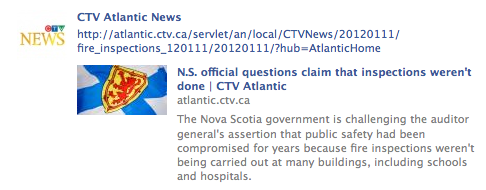
There is wasted opportunity by posting in this manner and also the inclusion of the URL is just plain ugly. Facebook has not made it easy to figure out, but you can make this a lot better. Not to mention I don’t even see the post title in my feed – all I see is a link of a long URL. Gonna click on that? Nope.
1. First open another tab and direct it to the web address you want to post.
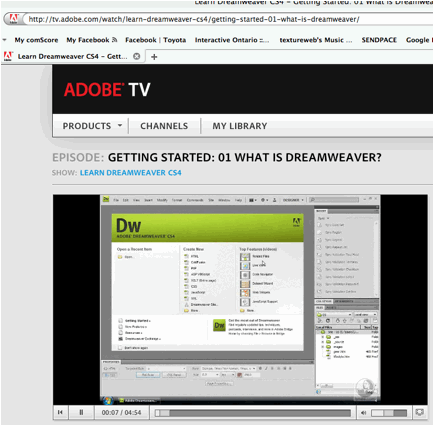
2. In your url area, select the address and copy this (Option C or CMD C).

3. Go to the tab with your Facebook page.

4. In the status area, post your link by pasting it (Option P or CMS P). If you want this to be status only, click the X where the content shows up. Otherwise continue to give a value add link in your news feed. Both will show in those who get your feed, so the added value is an image and more content in front of the fan.
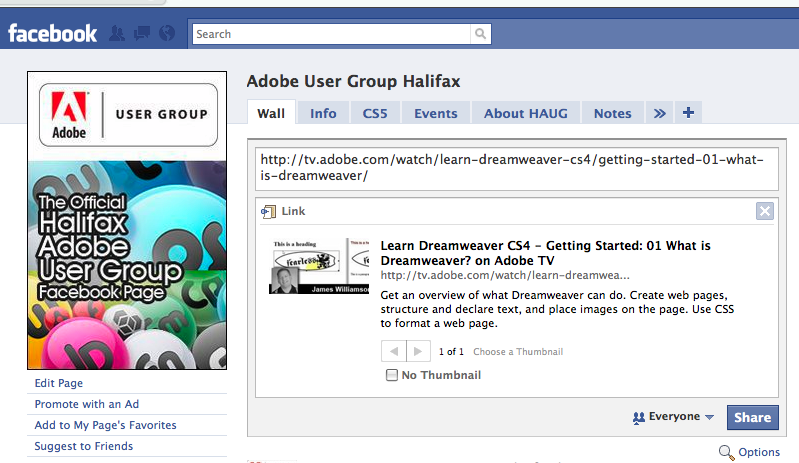
If the link does not show up, you will have to restart your browser. You can keep the url in your clipboard or in a text file, or even on a desktop browser shortcut.
5. Now select the url where you pasted it. Delete that. The link is maintained.

6. The url space should be now blank. You can put in some introductory or bridge copy which will link the article to the relevancy of your fans or leave it blank as below.
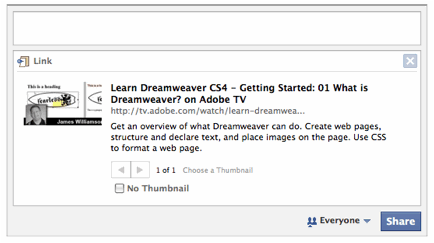
7. You can edit the title or the copy by clicking on it and changing the text
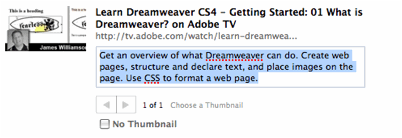
8. Press Share and leave the reach set for Everyone. You can now see the modified post in your wall.
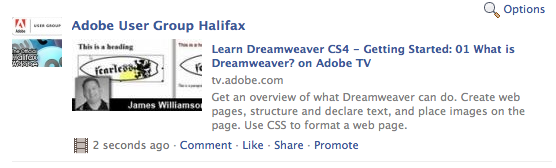
As another way to make things more viral in reach, by using the @ in front of the username of a page or person, or typing in the full name of the page or person associated with the post, you can target pages or personal profiles on Facebook in the post.
You may also want to go through the thumbnails associated with the URL, though about half the time like in this example, you only have one to choose from.
Recent Comments