I am not sure when Facebook upgraded their photo album uploading tool as lately I have been just posting a photo here and there through my iPhone app. The weekend however gave me a chance to create a new album as I had some photos to upload from my son’s hockey tournament.
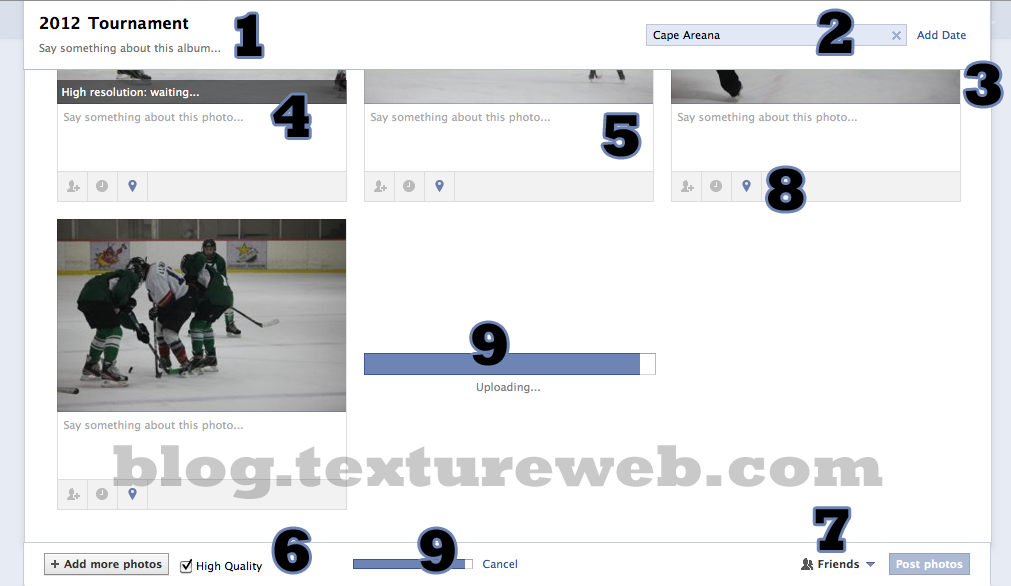
Facebook has upgraded it's photo upload tool for albums
Here are some of the things that I see are better than before.
- Naming and describing: A better job of highlighting the album name and that I should give a description is apparent. Top left – makes sense as that is where your eye starts from.
- Place and date: Now you can tag all the photos you are putting in the album with the place (granted the place is a Place on Facebook) and the date. You can choose the day, or just go with the month and year. I like that as the photos were over various days in my case.
- Scrolling: If you are uploading a lot of photos, the page will scroll down, but keep the header information for title, description, place and date in view.
- Quality switch: If you start to upload and decide that you want to change the quality of the images to high quality, it will switch over to do that. If you are in the process of uploading and change the quality it will continue on, and then go back to switch out the photo quality as shown here once the others are uploaded.
- Description: This is underneath each photo as you upload. No need to wait for upload and twiddle your thumbs and then spend time in the edit function to describe each photo.
- Quality and add: As mentioned in #4, you can change your quality of photo during the upload process and also add more photos – on the fly while others are being already uploaded and processed.
- Share: Remember to set your preferences for sharing.
- Tag: Tag a person, place (if different from the album) and set the date on the fly – no need for finishing your uploads. This might be a bit tricky if your photos are not yet loaded, but for the ones that are, it works well.
- Progress: Progress of each photo and the overall album upload is featured.
Not shown: in the top right of each photo you can select the down arrow to set any photo as the album cover or delete a photo before you have even finished with uploading all your photos.
All in all a great improvement. My caveat is the damn rotate function. This is harder to do than earlier and still a pain in the ass to find out how to do this. This is important for those who use photos from a device that does not recognize orientation.
Recent Comments